Git for Beginners: Basics and Essential Commands
What is Git ?
Git is a free and open-source distributed version control system (DVCS). It used to keep track of changes to files (any type), generally the code files of the project.
It is called a distributed version control system because of it allows multiple people to work on the same project, even if they are not connected to a common server.
It was initially created by Linus Torvalds to manage the development of the Linux kernel.
What is a Git repository and How to create one?
A Git repository (or repo) is a storage space where your project’s files and their complete history of changes are kept. There a two types of Git repositories -:
Local Repository -:
Stored on your own computer.
Allows you to make changes, commit them, and review your project history without needing an internet connection./
Example: The
.gitfolder inside your project contains the local repository.
Remote repository -:
Hosted on a server like GitHub, GitLab, or Bitbucket.
Enables multiple developers to collaborate on the same project.
Supports operations like
push,pull, andfetchto synchronize changes with the local repository.
How to create a Git repository ?
Open your terminal or command prompt.
Navigate to your project folder using
cdRun the command:
git init: this creates a hidden.gitsubfolder, which houses the internal data structure required for version control.
Git Terminologies
Commit: Git commit is used to save changes from the staging area into the repository’s history. Each commit acts as a snapshot of your project at a particular point in time, allowing you to track, review, and revert changes if needed. It is similar to saving your work in Git.
Branch: A branch is a version of the repository or project that diverges from the main working project. Branches can be a new version the same project containing experimental changes, some new features, bug fixes etc.
HEAD: HEAD is a pointer to the most current commit of the repository in which you are working. When you add a new commit, HEAD will then become that new commit or whenever you switch to a different branch, the HEAD is updated to point to that new branch.
Tags: Tags are a kind of reference pointer that points in the Git history. They are often used to note point releases of a project.
Working Directory: It is the directory on your computer's file system where your project files live and where you actively make changes (writing code, editing files, deleting assets).
Staging Area: The Staging Area is an intermediate storage area between your Working Directory and the Commit History. The Staging Area allows you to select what exactly goes into a commit. Instead of committing every single change you've made in your folder.
A Crash Course on Git Commands
1. Setup and Configuration
git config
Used to set Git configuration values on a --global (user-level) or --local (project-level) basis.
Usage:
git config --global user.name "Your Name": Sets your username globally.git config --global user.email "you@example.com": Sets your email globally.
git init
Initializes a new Git repository. It creates a hidden .git folder in the current directory, which tracks all changes.
Usage:
git init: Converts the current folder into a Git repository.
2. The Basic Workflow: Staging & Committing
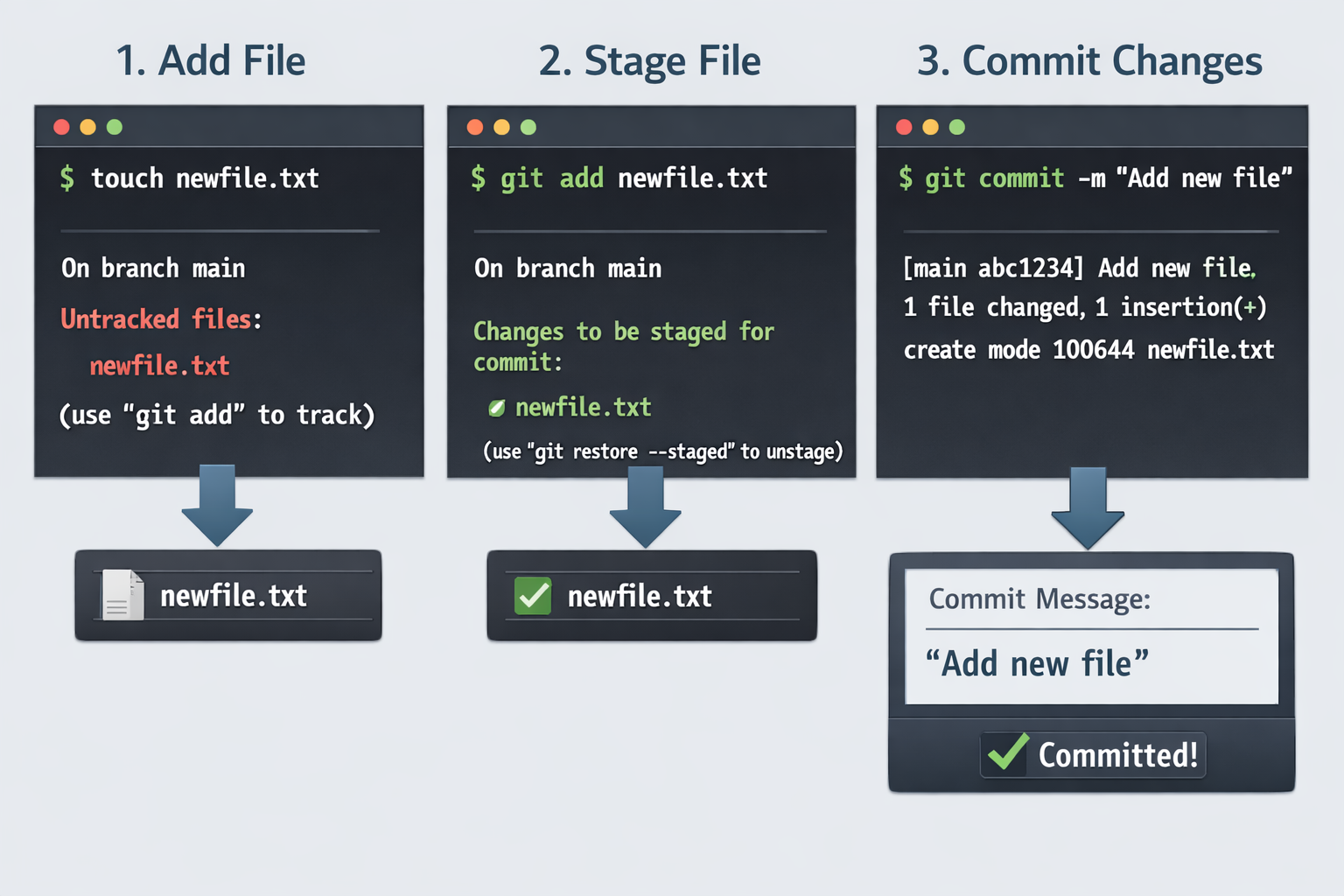
This is the cycle you will repeat most often: check status, stage files, and commit them.
git status
Displays the state of the working directory and the staging area. It tells you which files are modified, staged, or untracked.
Usage:
git status: Shows the current status.
git add
Moves changes from the Working Directory to the Staging Area (Index). Only staged files will be included in the next commit.
Usage:
git add <filename>: Stages a specific file.git add .: Stages all new, modified, and deleted files in the current directory.git add --all: Stages all changes in the entire repository.
git commit
Captures a snapshot of the currently staged changes. This saves the changes to the Commit History.
Usage:
git commit -m "<commit_message>": Commits staged changes with a descriptive message.git commit --amend: Modifies the last commit. It combines currently staged changes with the previous commit and allows you to edit the commit message. Useful for fixing typos or adding forgotten files to the last commit.
Below Image shows a basic developer workflow using Git that you would follow most of the time:
3. Branching & Merging
Branches allow you to work on different features or different version of your project in isolation.
git branch
Used to create, list, or delete branches.
Usage:
git branch: Lists all local branches.git branch <branch_name>: Creates a new branch (does not switch to it).git branch -d <branch_name>: Deletes a branch safely (prevents deletion if unmerged changes exist).git branch -D <branch_name>: Force deletes a branch.
git checkout
Used to switch between branches.
Usage:
git checkout <branch_name>: Switches to the specified branch.git checkout -b <new_branch>: Creates a new branch and switches to it immediately.
git merge
Combines the commits of two branches. First you switch to the target branch (e.g., main/master) and merge the feature branch into it.
Usage:
git merge <branch_name>: Merges the specified branch into the current branch that you are on.
There are two types of merges:
Fast-Forward Merge: Happens when the target branch has not moved since the feature branch was created. The pointer simply moves forward.
Merge Commit: Happens when both branches have new commits. Git creates a new "merge commit" to tie the histories together.
4. Syncing with Remote Repositories
These commands allow you to collaborate with others by syncing your local repository with a remote one (like GitHub, GitLab, Bitbucket etc.)
git remote
Manages the set of tracked repositories.
Usage:
git remote add origin <url>: Connects your local repo to a remote server (like GitHub, GitLab, Bitbucket etc.), aliasing it asorigin.
git fetch
Downloads commits, files, and refs from a remote repository into your local repo. It does not update your working files**.** It is safe to run at any time.
Usage:
git fetch origin: Fetches updates from theoriginremote.
git pull
Fetches changes from the remote and immediately merges them into your current branch. Essentially git fetch + git merge.
Usage:
git pull origin master: Pulls changes from the remotemasterbranch.git pull --rebase: Fetches changes and reapplies your local commits on top of them (keeps history linear).
git push
Uploads your local branch commits to the remote repository.
Usage:
git push origin <branch_name>: Pushes the branch to the remote server.git push -u origin <branch_name>: Pushes and sets the "upstream" link, so you can just typegit pushin the future.git push --force: Overwrites the remote branch with your local history (use with caution).
5. History
git log
Shows the commit history/logs.
Usage:
git log -n: shows latest n commits from history.git log --oneline: Shows a condensed history (hash + title).git log --graph --oneline --decorate: Visualizes the branch structure in the terminal.git log -p: Shows the actual code changes (patch) for each commit.git log --author="Name": Filters commits by a specific author.
6. Undoing Changes & Rewriting History
git revert
Creates a new commit that applies the inverse of a specified commit. This is the safe way to undo changes in public history.
Usage:
git revert <commit_id>: Creates a new commit that undoes the changes of a particular<commit_id>.
git reset
Moves the HEAD pointer to a specific state. It can alter the Commit History, Staging Index, and Working Directory.
Usage:
git reset --soft <commit_id>: Moves HEAD to the commit. Changes after that commit are kept in the Staging Area.git reset <commit_id>(Mixed): Moves HEAD. Changes are kept in the Working Directory (unstaged).git reset --hard <commit-id>: Moves HEAD. Destroys all changes after that commit.
git rebase
Reapplies commits on top of another base tip. It is often used to keep a linear history or to clean up commits before merging.
Usage:
git rebase master: Moves the current branch's commits to the tip ofmaster.
7. Advanced Tools
git stash
Temporarily shelves (stashes) changes you've made to your working copy so you can work on something else, and then come back and re-apply them later.
Usage:
git stash: Stashes current dirty changes.git stash list: Lists all stashes.git stash pop: Applies the latest stash and removes it from the list.git stash apply: Applies the latest stash but keeps it in the list.
git tag
Tags are references that point to specific points in history, usually used for version releases (e.g., v1.0).
Usage:
git tag -a v1.0 -m "Version 1.0": Creates an annotated tag.git push origin --tags: Pushes tags to the remote.
git cherry-pick
Applies the changes introduced by some existing commits into the current branch. Useful if you want to pick just one specific fix from another branch without merging the whole branch.
Usage:
git cherry-pick <commit_id>: Applies that specific commit to your current branch.


